User manual - Mockups - Beatriz Pascual Studio
General information to be taken into account
With each mockup purchase, you will receive a psd file editable with Adobe Photoshop.
In each file you will see a series of layers that follow a color code:
- The red capes should not be edited
- The green layers are actually intelligent objects and are therefore editable.
- The purple capes usually add details, which can be editable through smart objects or simple adjustments (lights, shadows, color effects, etc...). It is the user's decision to leave them active (and therefore visible), or inactive (and therefore invisible).
How does a smart object work in Adobe Photoshop?
FOLLOW THESE STEPS
1. Open the Smart Object
Depending on each mockup, in one file you can find several green layers with smart objects to edit.
Each of these layers will contain the name of the part of the mockup it modifies.
Double-click on the small smart object layer icon and a new canvas will open, where you can apply your own stamp design or a plain color on the layer.

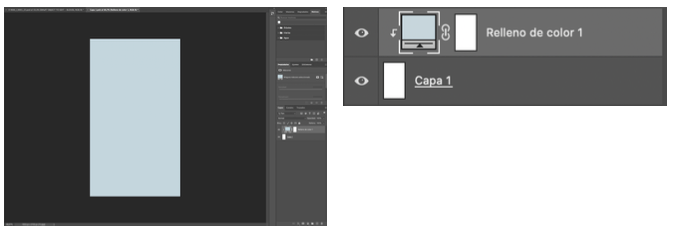
2. Edit the Smart Object
By default, in smart object layers, plain colors have been applied.
To select your own color, or your pattern fill, click twice on the square icon of the layer that is filled with color/motif.
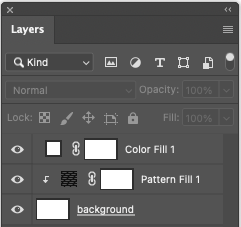
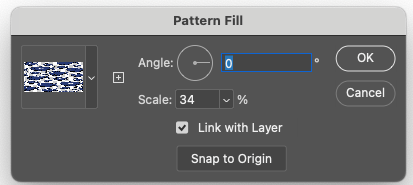
Double click again on the fill layer of the pattern and make the necessary adjustments to the scale and directional angle of the stamping.
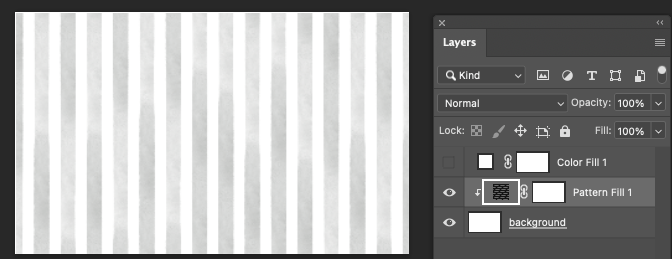
Enables or disables the display of the layers you want to be visible in the smart object.
3. Save changes
Save the changes (Command + S) when you have filled the layer using your design/pattern/color and the smart object will update automatically, reflecting the changes applied to the entire layout.
Frequently Asked Questions
Can I use these mockups to sell my own designs?
Yes! My mockups are 100% editable and suitable for commercial use (no attribution needed).
Can I use them in an unlimited number of presentations or graphic products?
Of course! there are no limitations on the number of mockups to be used.
Can I customize or modify them according to my needs?
Absolutely yes! You can modify the mockup according to your needs.
Can I use these mockups to sell my designs on social networks?
Consult all your doubts about permitted and not permitted actions with the use of mockups in the digital product license terms and conditions
Start creating professional presentations!
Download my mockups and show off your prints with an irresistible look.
All mockups are 100% commercial. No attribution required.